

1. From the Dashboard, locate the Create New Catalog button.

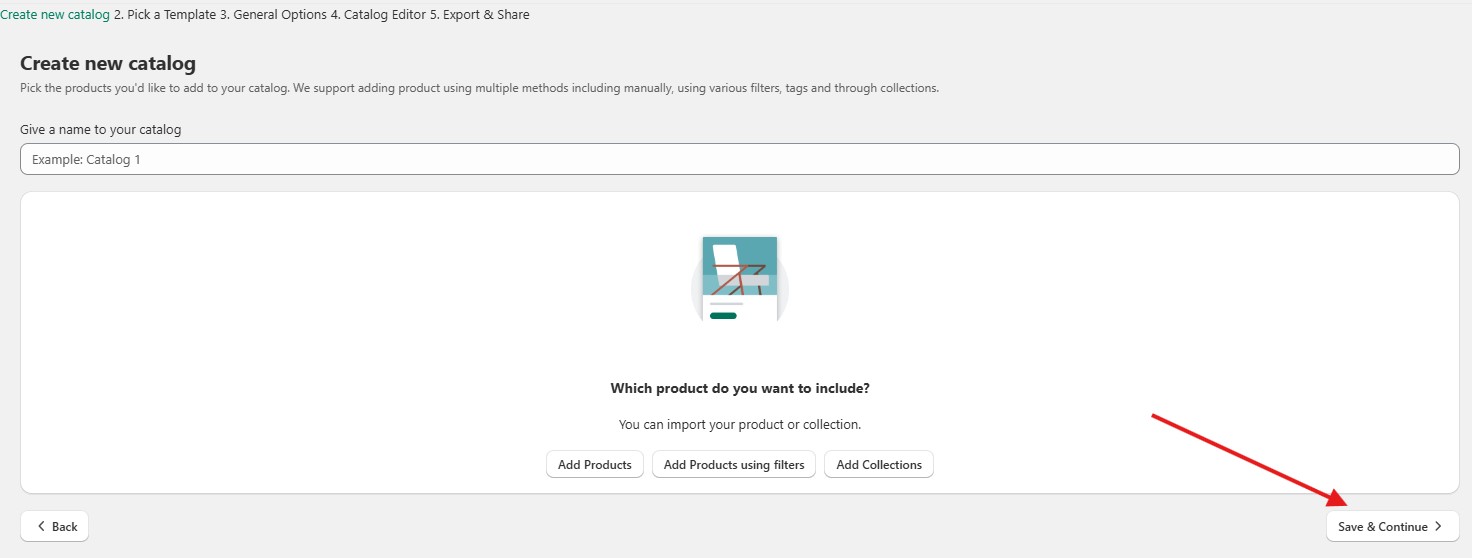
2. In the Create new catalog window, give your catalog a name, select whether to Add Products, Add Products using Filters, or Add Collections, then click the Save and Continue button.
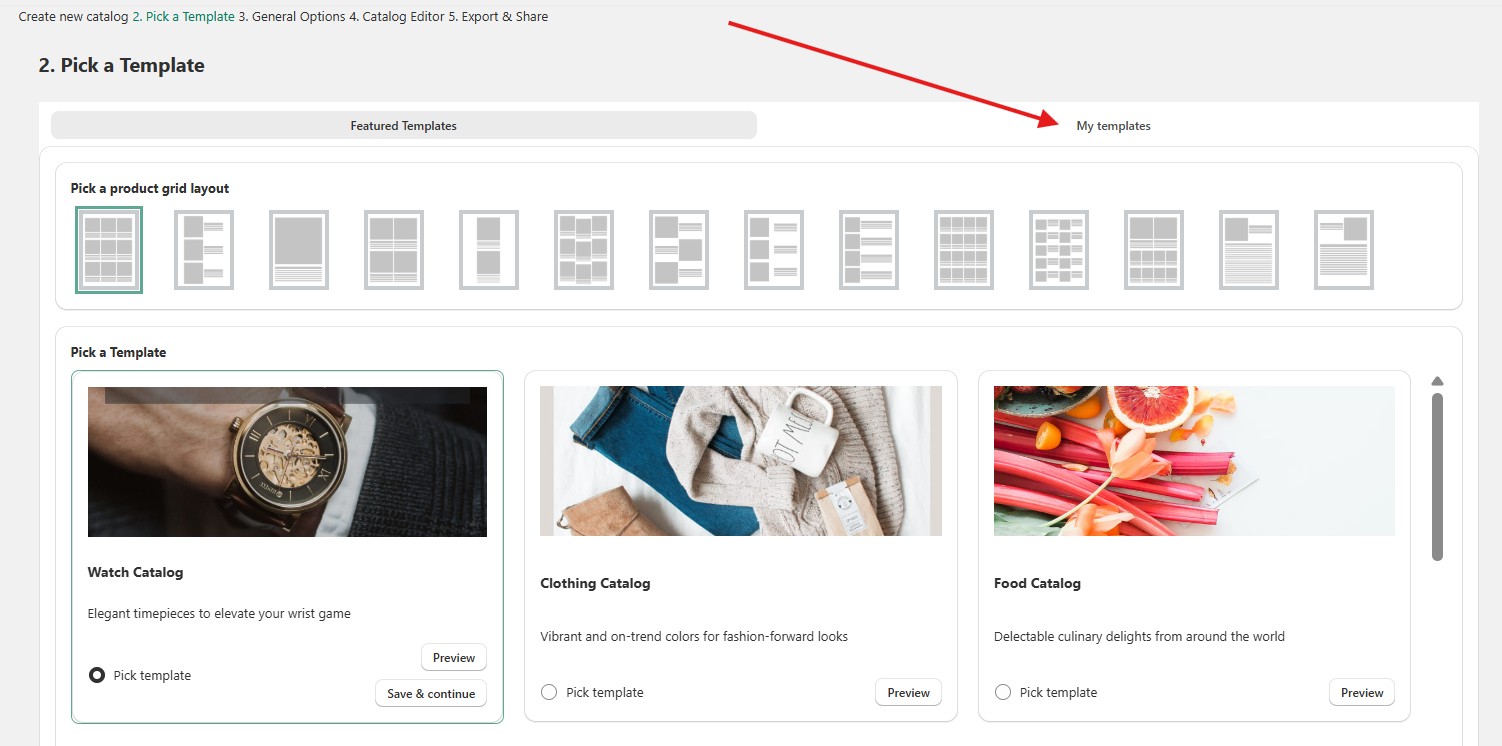
3. On the Pick a Template page, click the My Templates button and select the template that you want to use.
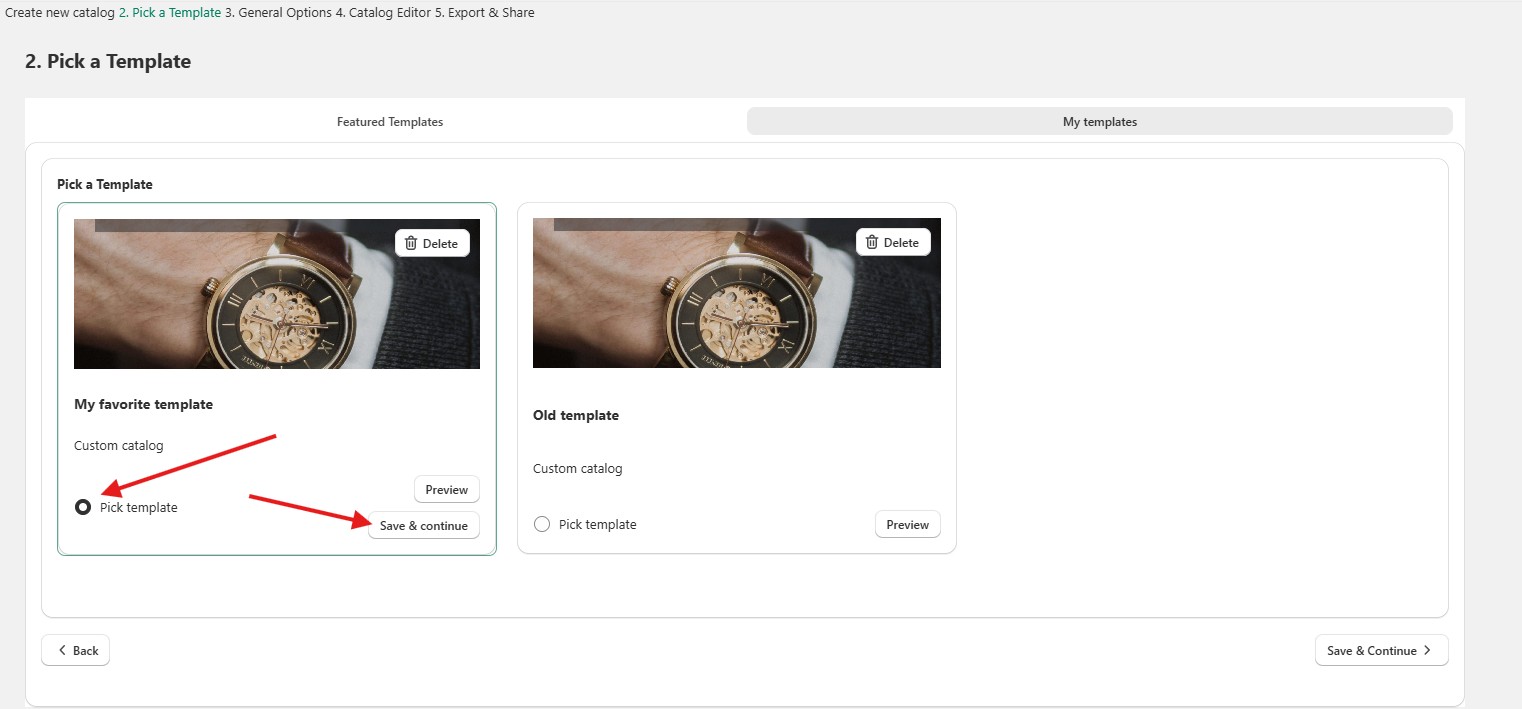
4. In the My Templates tab, choose the template you want to use from your available created templates, then select the Pick Template radio button and click Save & Continue.
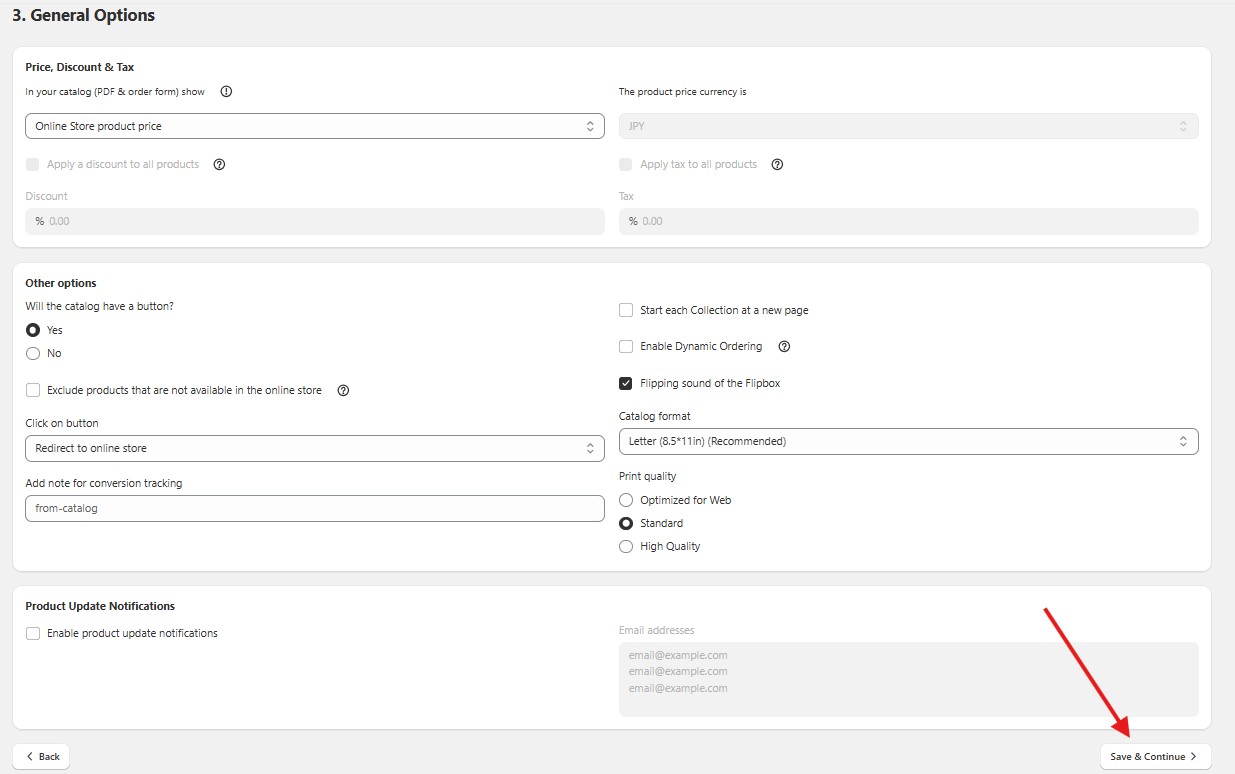
5. Fill in the General Options form. And again, click 'Save & Continue'.
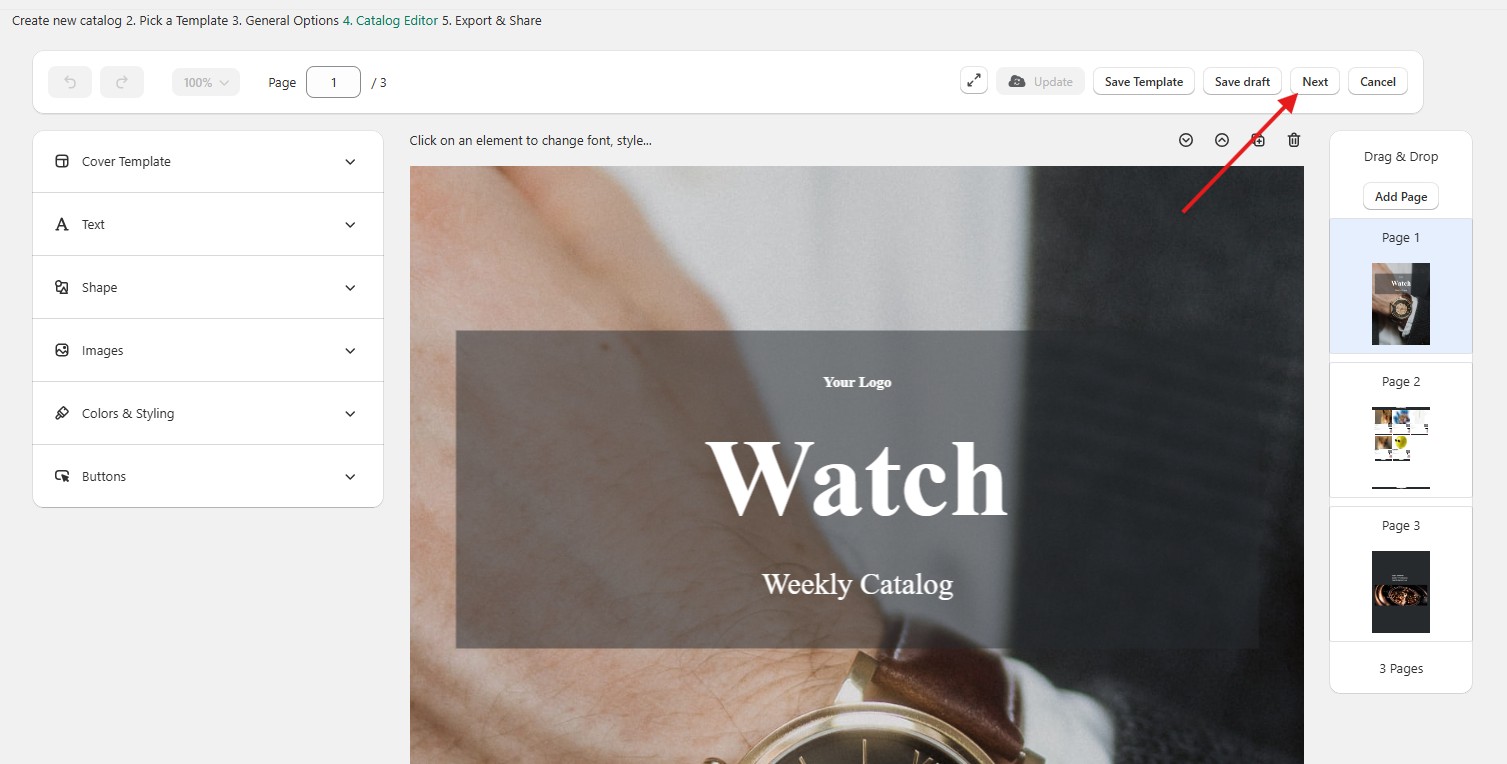
6. After filling in the general options form, you will be redirected to the Catalog Editor. Once you're have finished editing the details and design of your catalog in the Catalog Editor, locate and click the Next button.
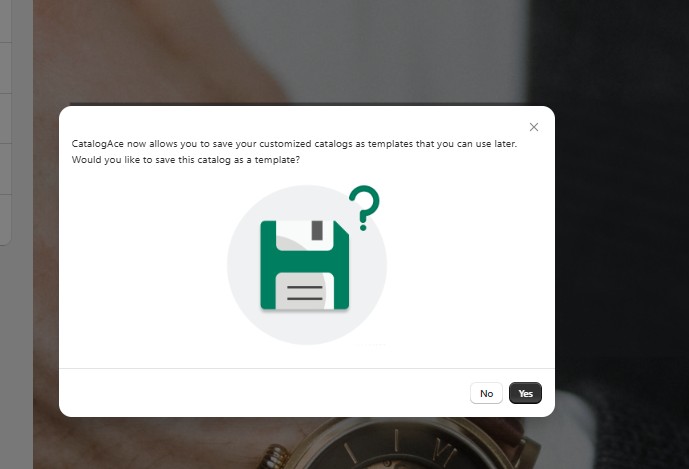
7. Another pop-up will appear, informing you that you can save your progress as a template for future catalogs. If you click Yes, the template will be saved automatically and will be available under the "My Templates" tab. If you click No, your progress will not be saved as a template, and it will not appear in the "My Templates" section—you will simply proceed with creating your new catalog.
Keywords:
Template Usage Guide
Using the Template
Template Instructions