

The steps on how to customize the catalog headers and footers are very similar. They are as follows:
Step 1. Click on the header/footer to reveal the customization options
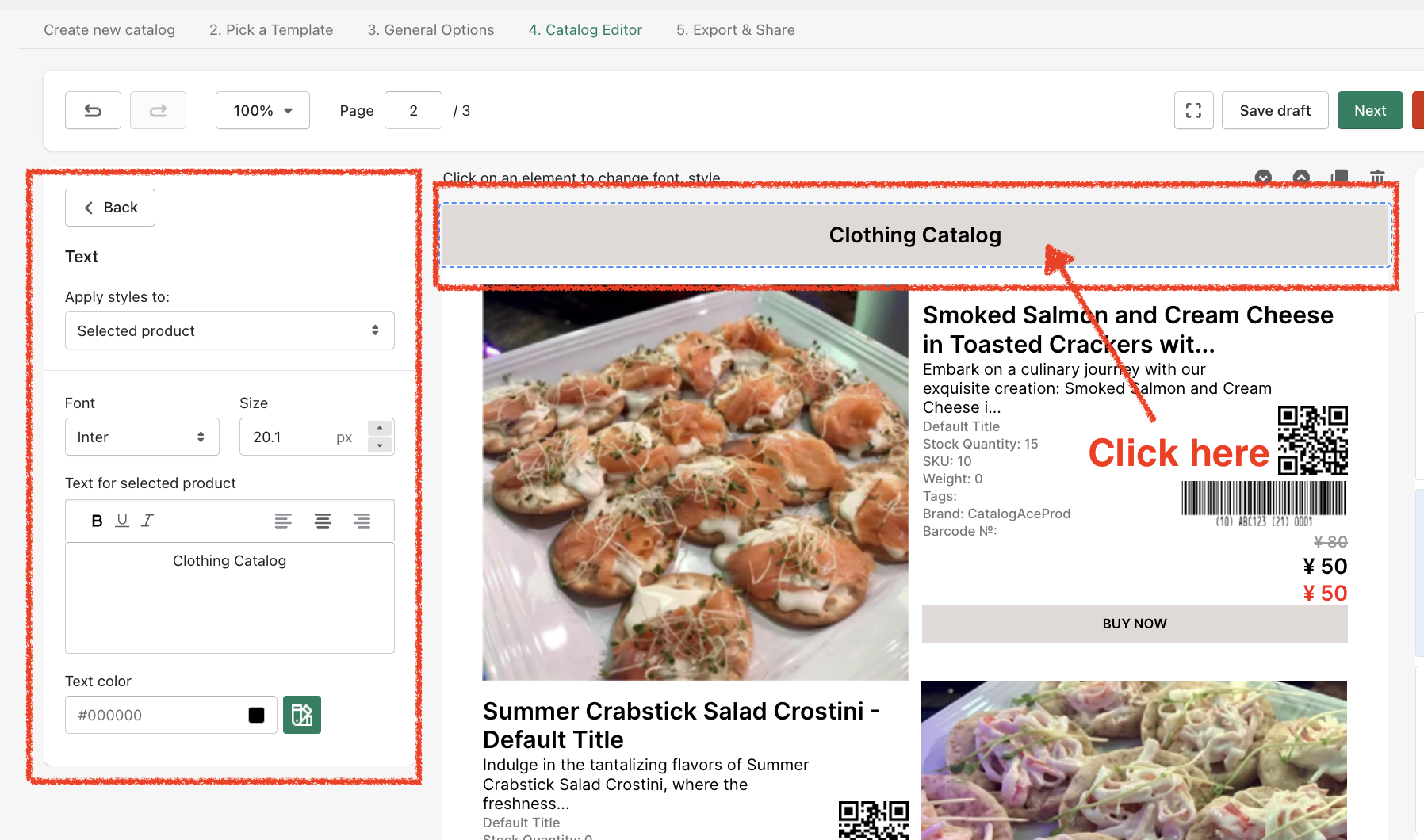
Step 2. Customize the header/footer
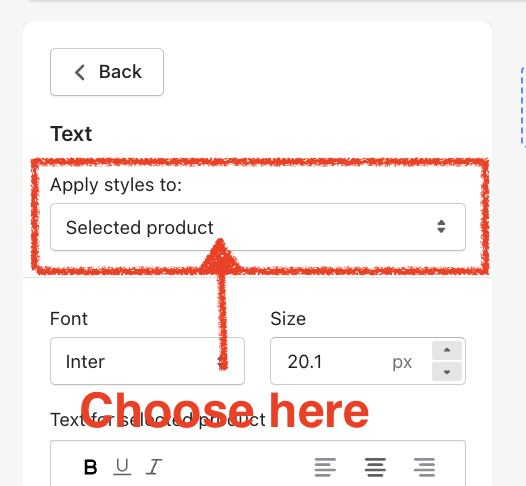
Choose from the "Apply styles to" dropdown if you want the changes to be applied to the selected page only or to all the catalog pages.
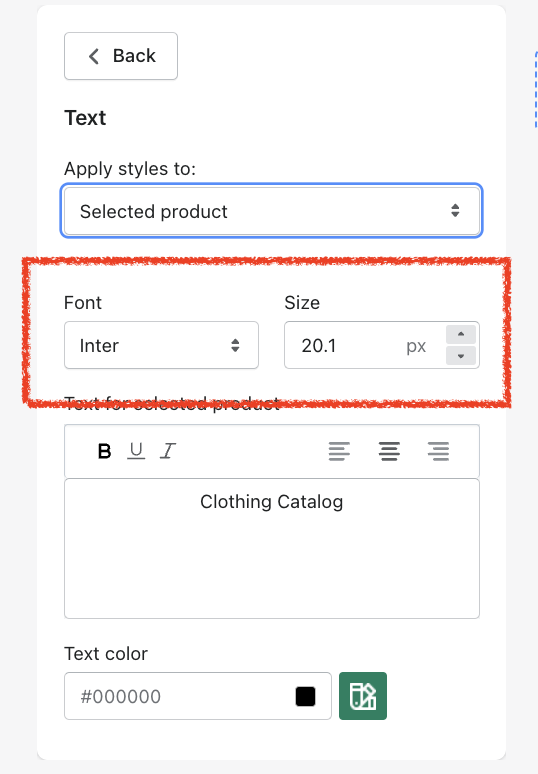
Select the font style and size.
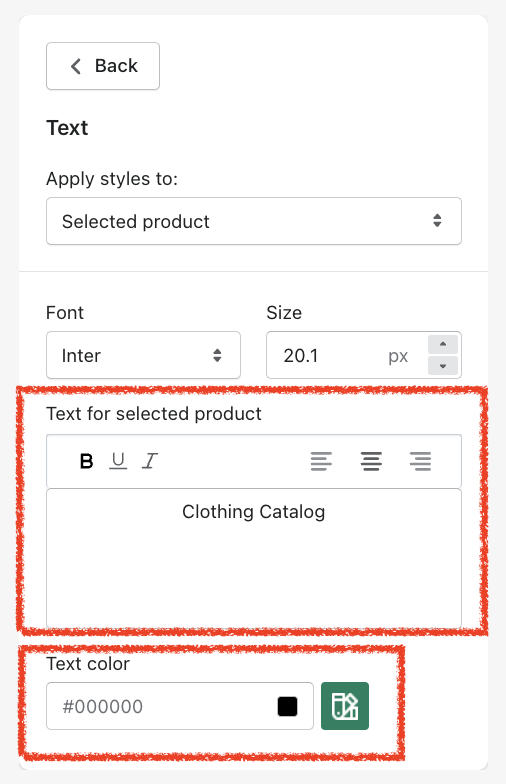
Edit the text and text color.
Note: You can not edit the header/footer colors here. You'll have to refer to this guide.
Keywords:
Can I apply the changes made to the header and footer to all my catalog pages?
Can I edit the font, size, formatting, and text color for my header and footer?