

Here's a guide on how you can add images to your existing catalogs:
While in edit mode, navigate to the Catalog Editor.
Go to the product page where you want to add/change an image.
Click on the product that you want to edit.
On the left side of the screen, there are few drop downs where you have to fill up.
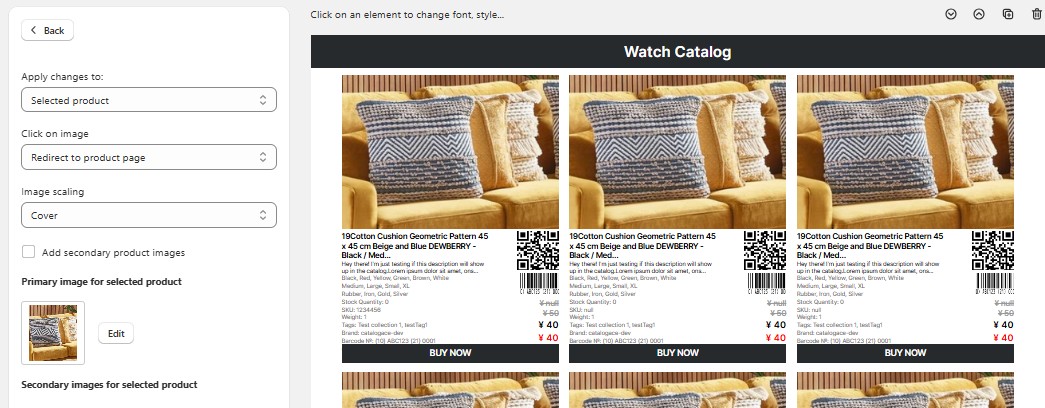
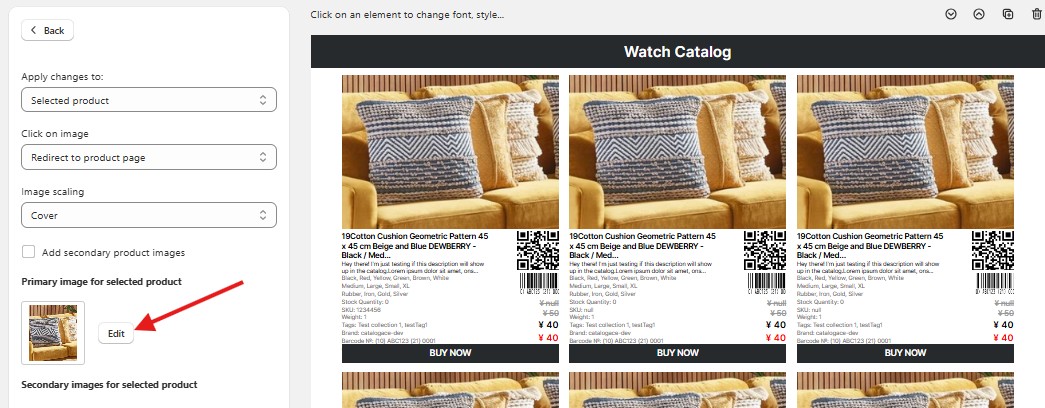
To change the image of the selected product, click the "Edit" button and then choose the desired image.
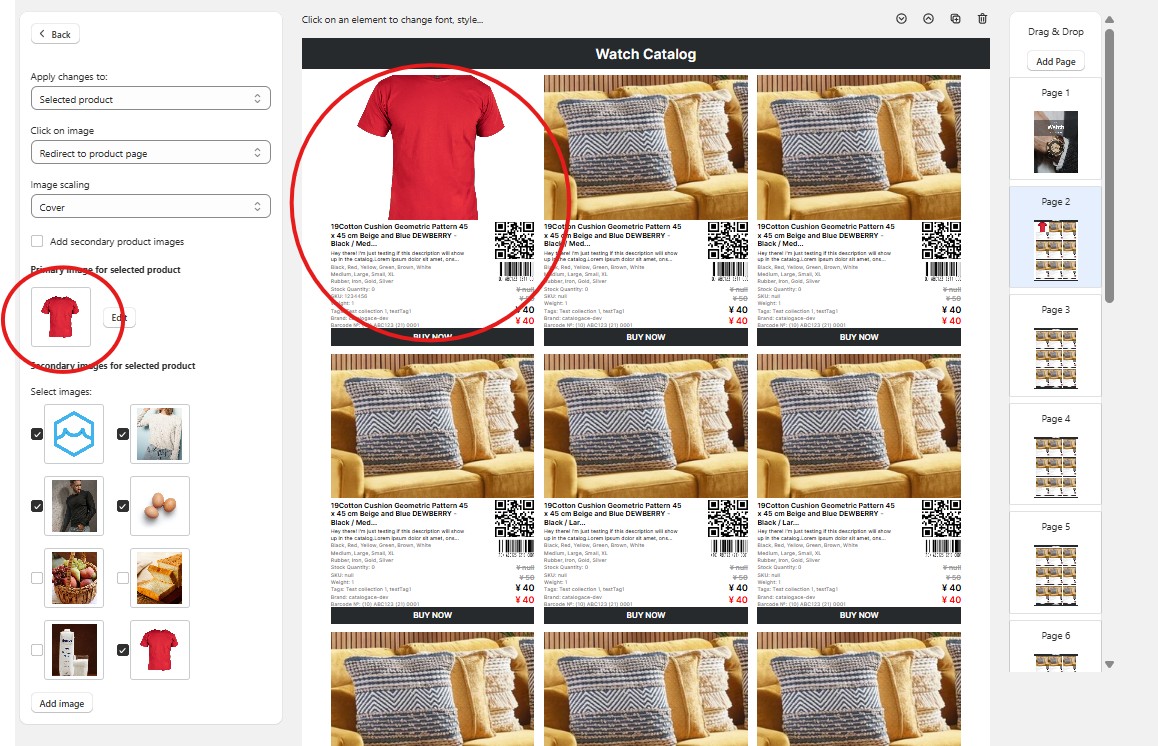
6. After you select and upload your desired photo, the image of the product you chose will update automatically.
7. If you'd like to include a secondary image, you'll find the "Add image" button at the bottom left.
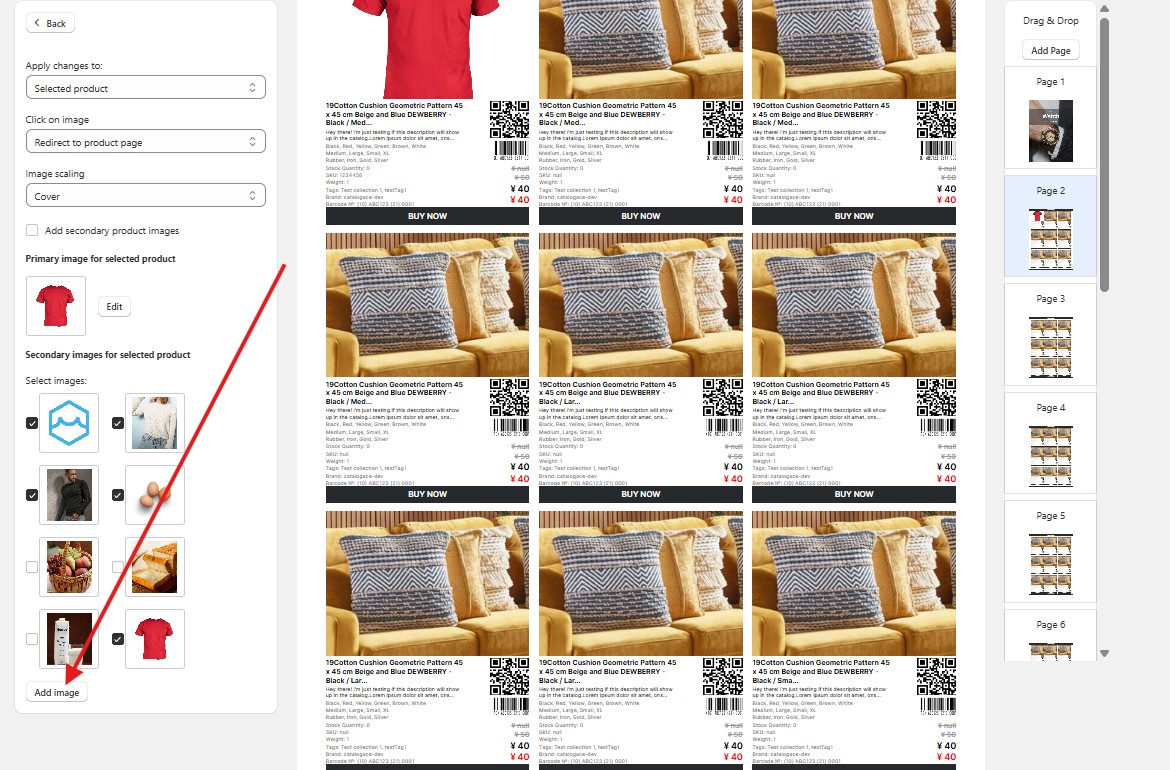
8. After choosing your secondary image, it will automatically pop up on the bottom left, making it available for selection.