Here's a guide on how you can transfer one or more products from one page to another:
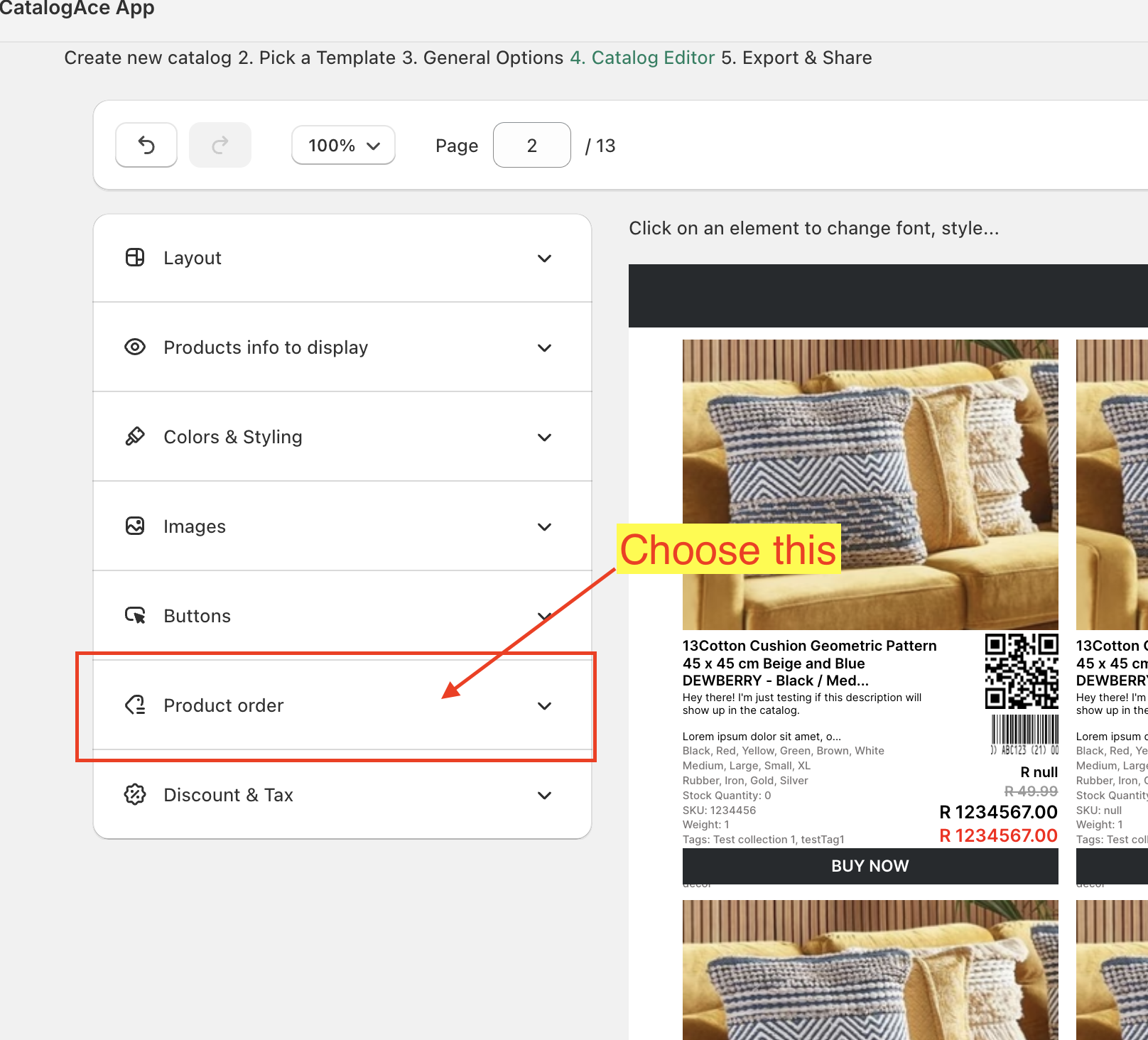
While in the Catalog Editor, go to a product grid page and then choose "Product order" from the left side menu.
You will see a list of all the products in the current page. Click the delete icon to remove the product.
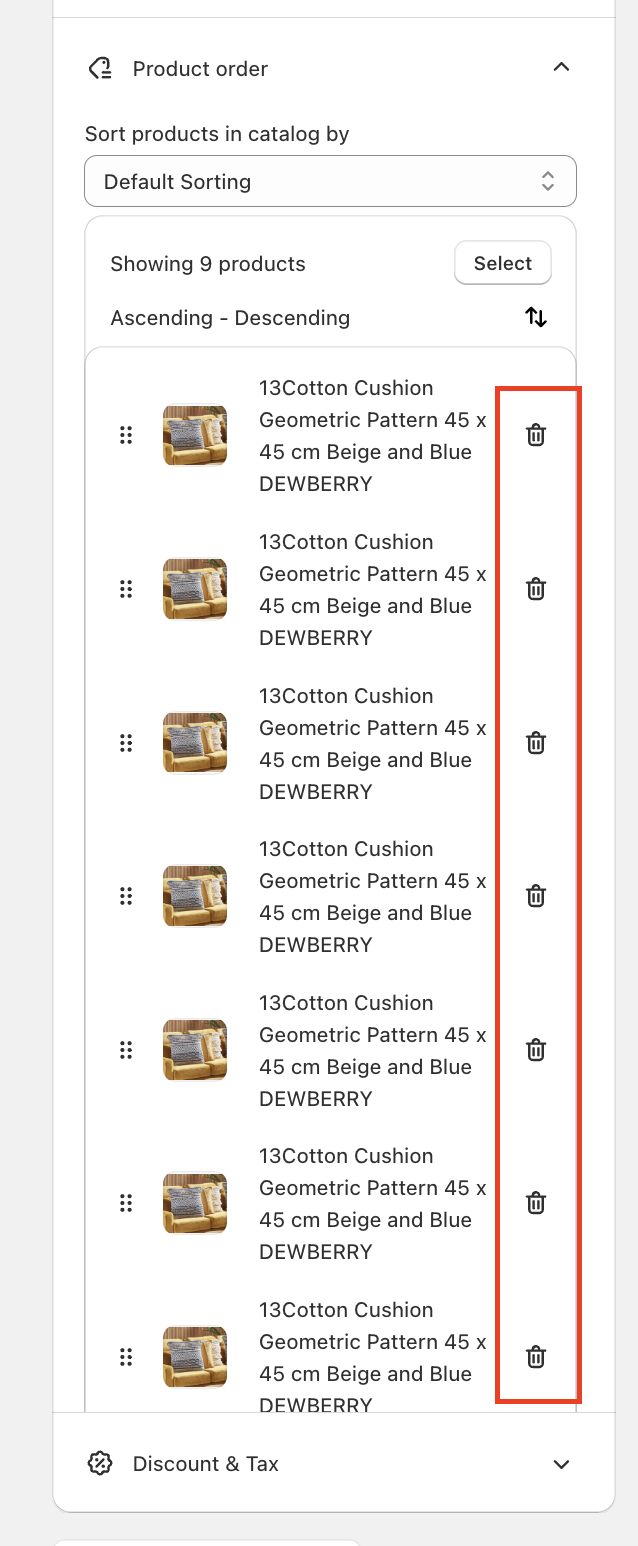
Please note that only the products on the current page will adjust and move up. So this will leave a blank space at the bottom. You might need to replace the product that you just removed.
Go to the page where you want to add the product. If the page is already full, you won't be able to add the product. So follow steps 1 and 2 to create a space.
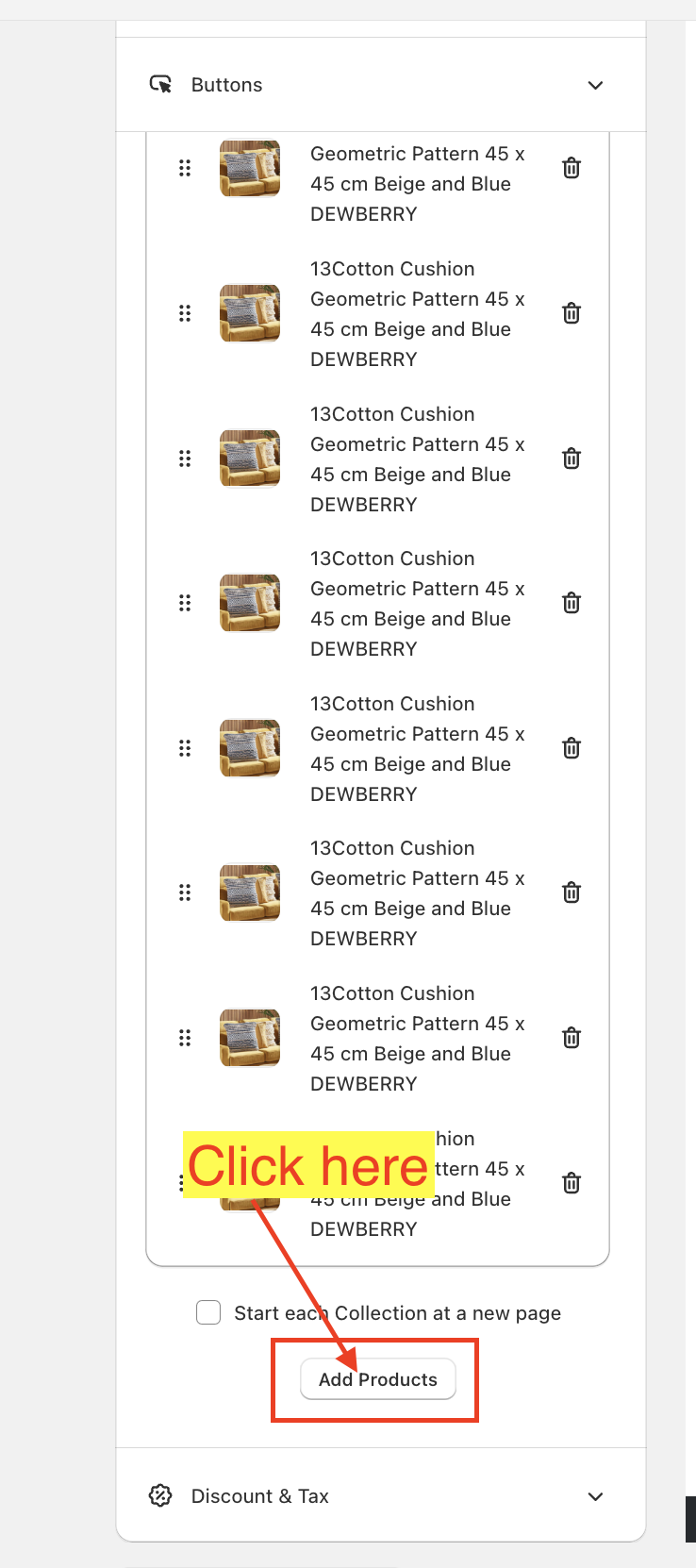
Once, you're ready to add the product, the "Add Products" button will be enabled. Click it and then choose the product that you want to add.