

There are two ways on how you can add products to your catalogs:
In the Create new catalog page.
In the Catalog Editor page.
Adding products/collections while in the "Create new catalog" page
There are three ways to add products in this page.
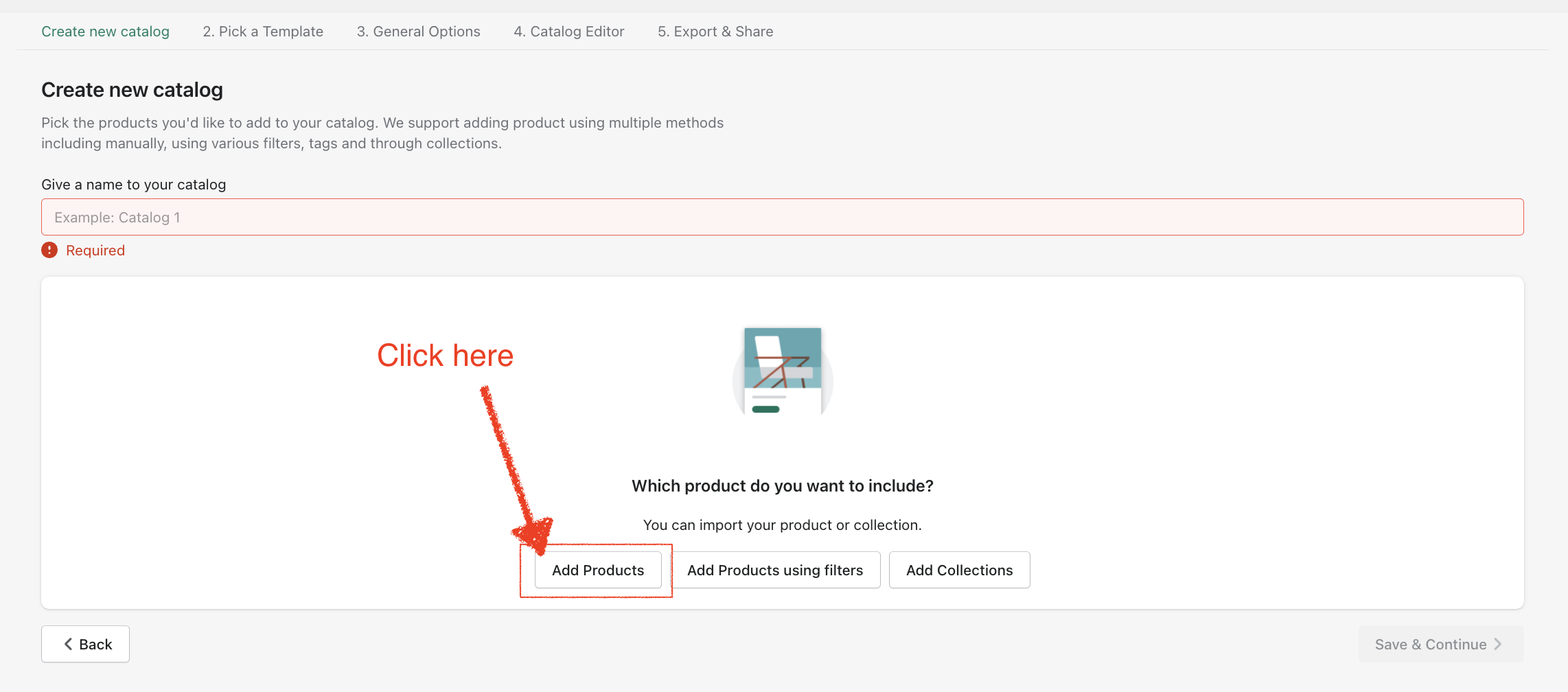
A. Using the "Add products" button.
Step 1: Click "Add products".
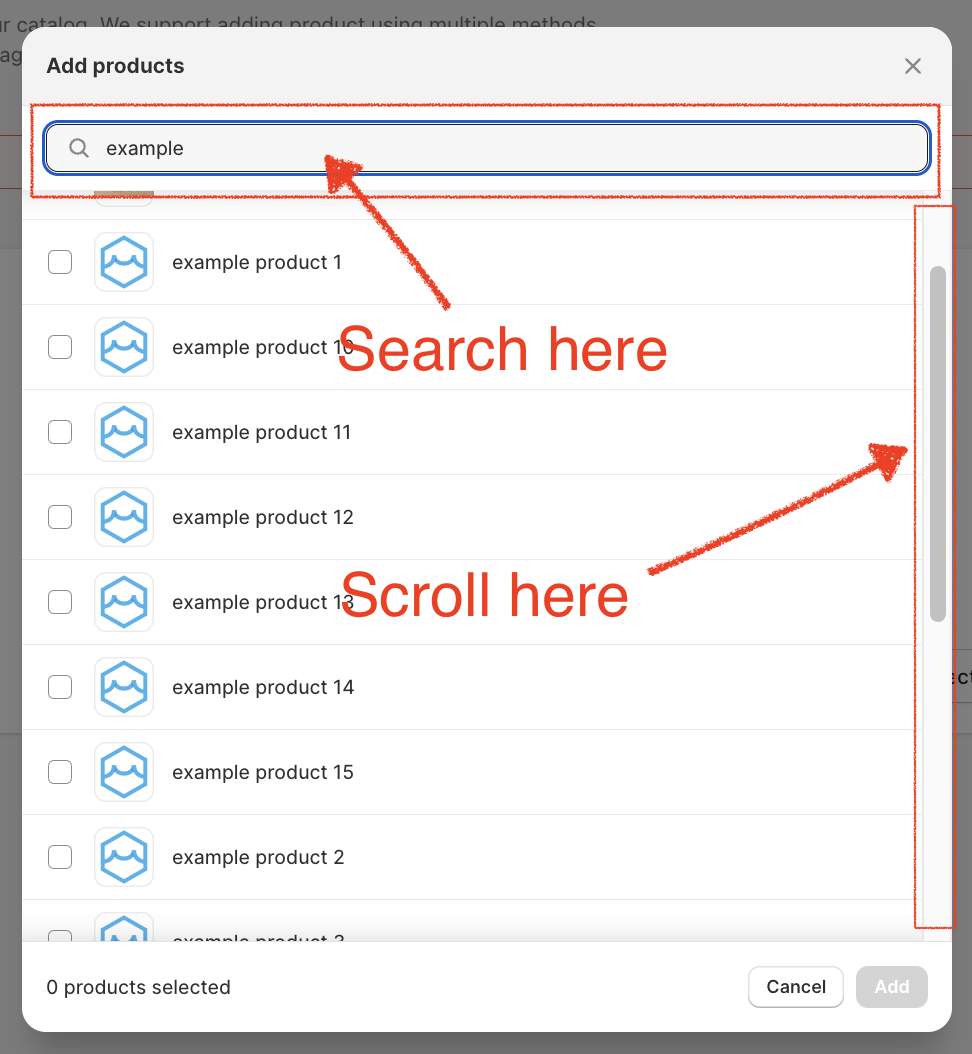
Step 2: Find the products that you want to include using the search bar or by scrolling up and down the list.
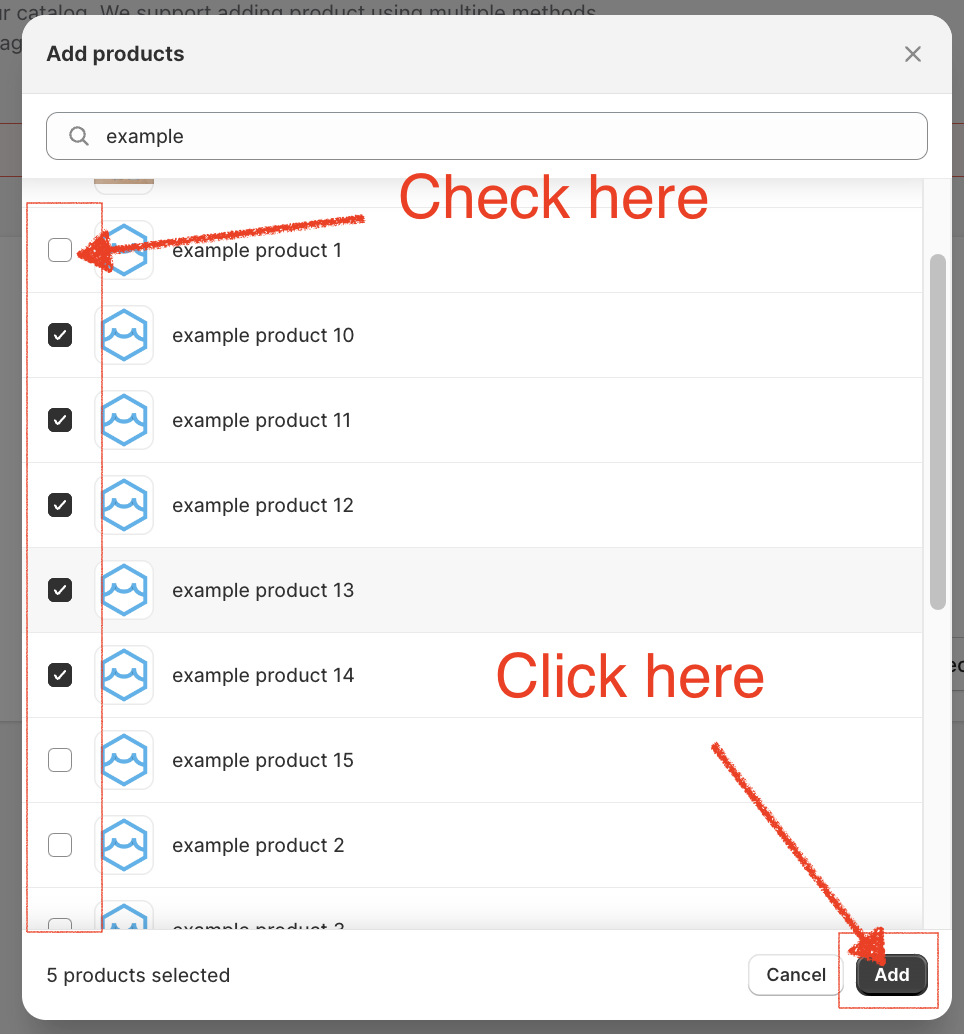
Step 3. Put a check on all the products that you want to include. And then click "Add".
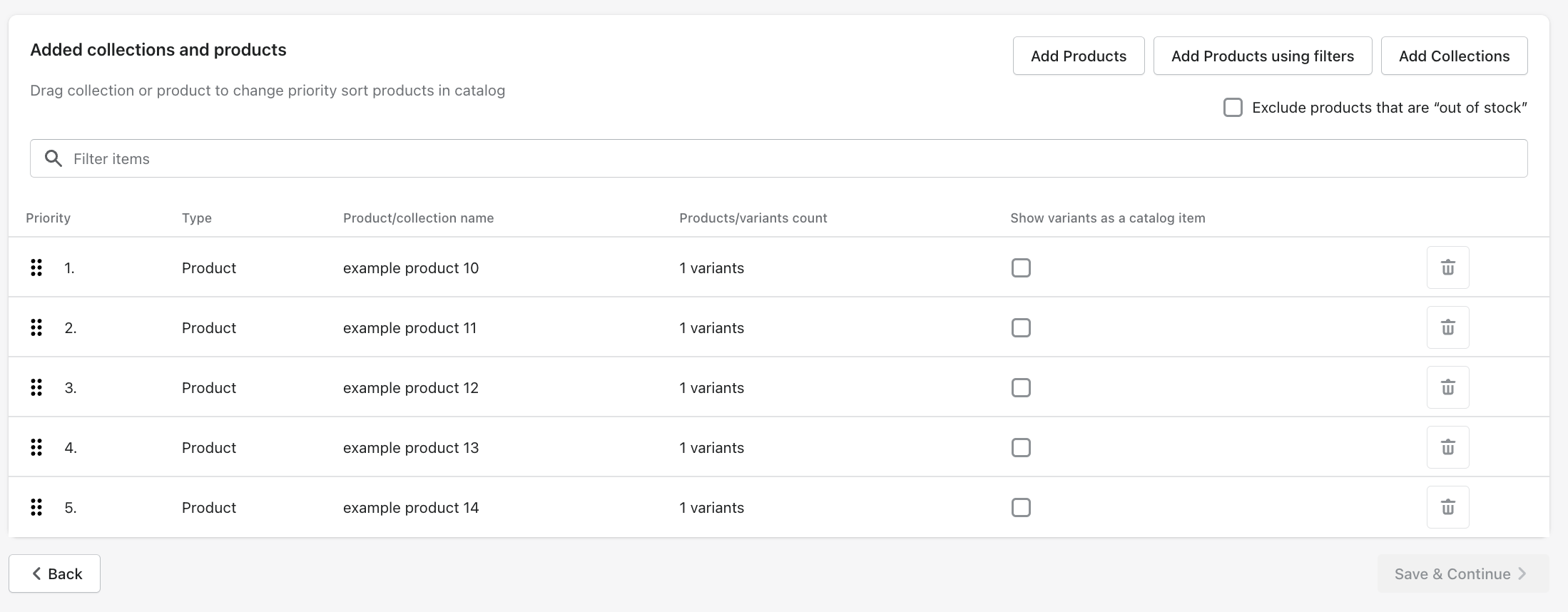
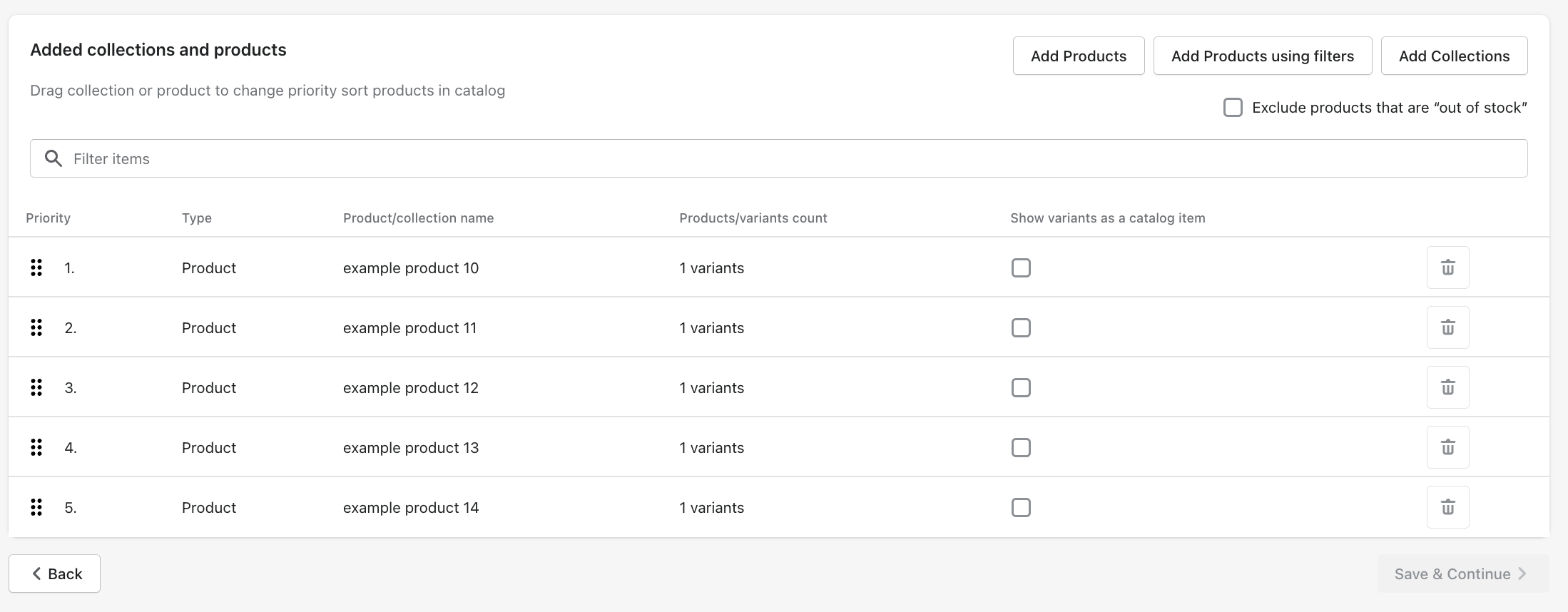
The products should now appear in the "Added collections and products" list.
B. Using the "Add products using filters" button.
Step 1. Click on "Add products using filters"
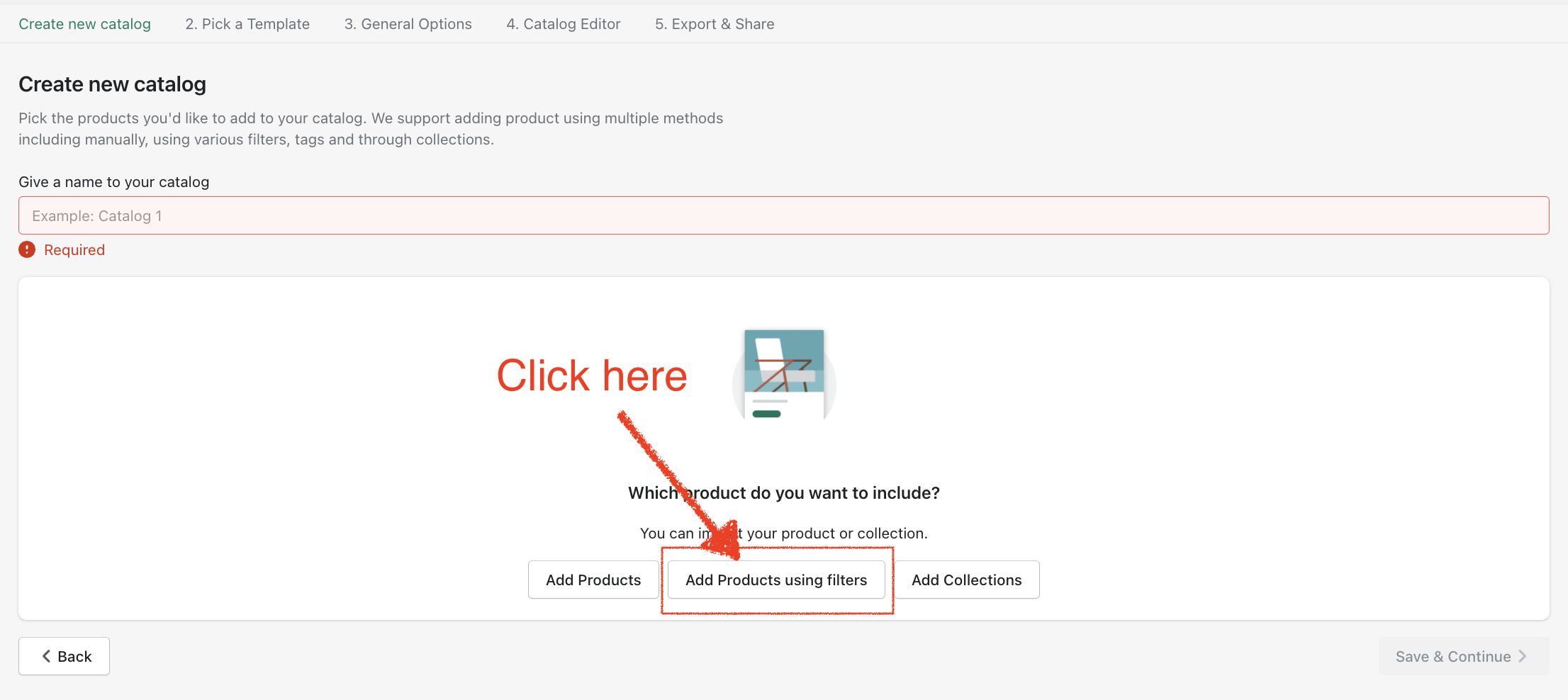
Step 2. Use any of the filter criteria to narrow down your product selection.
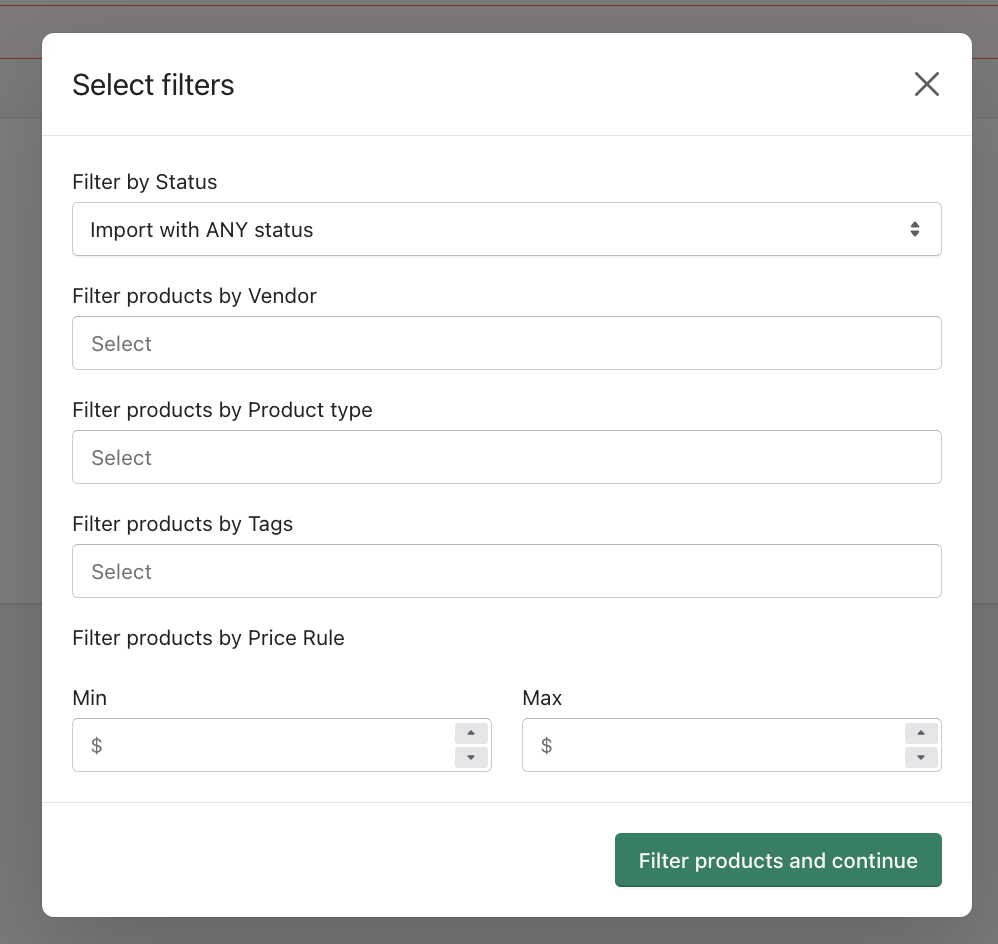
Step 3. Click on the "Filter products and continue" button.
The products should now appear in the "Added collections and products" list.
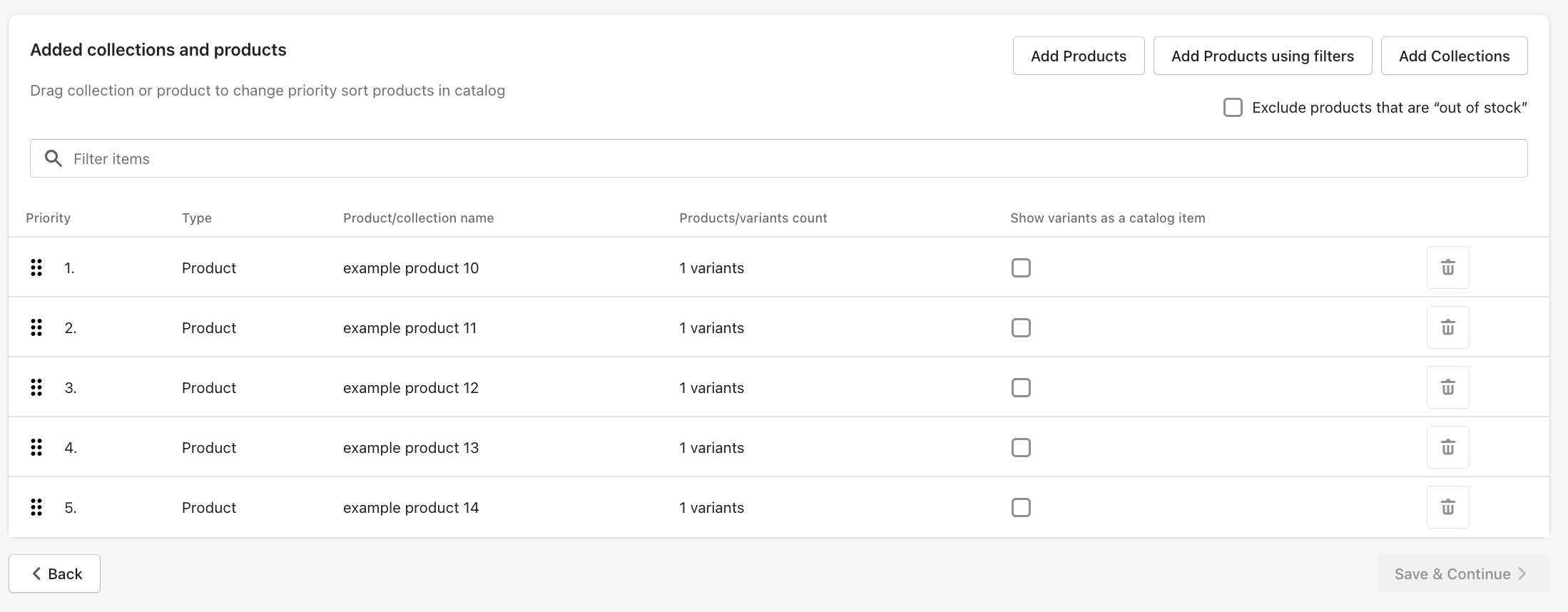
C. Using the "Add Collections" button.
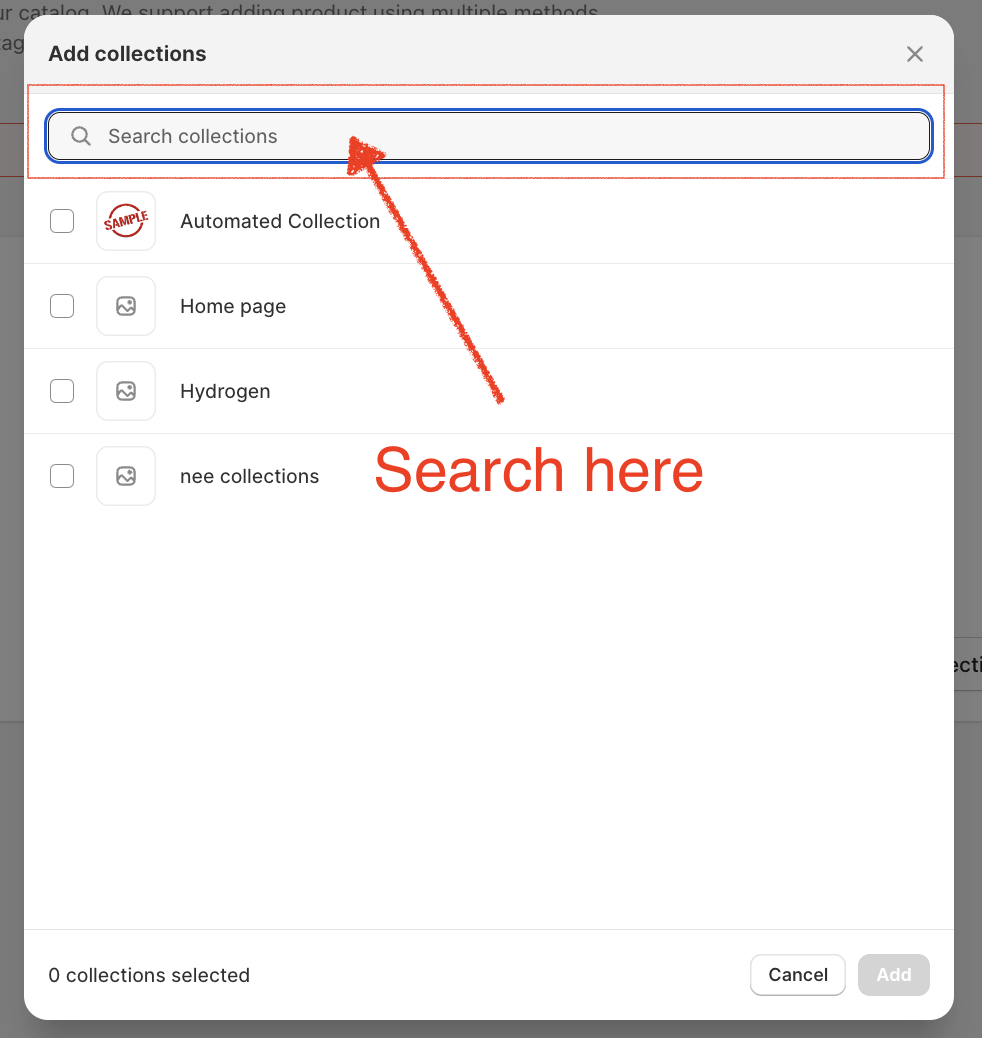
Step 1. Click on "add collections".
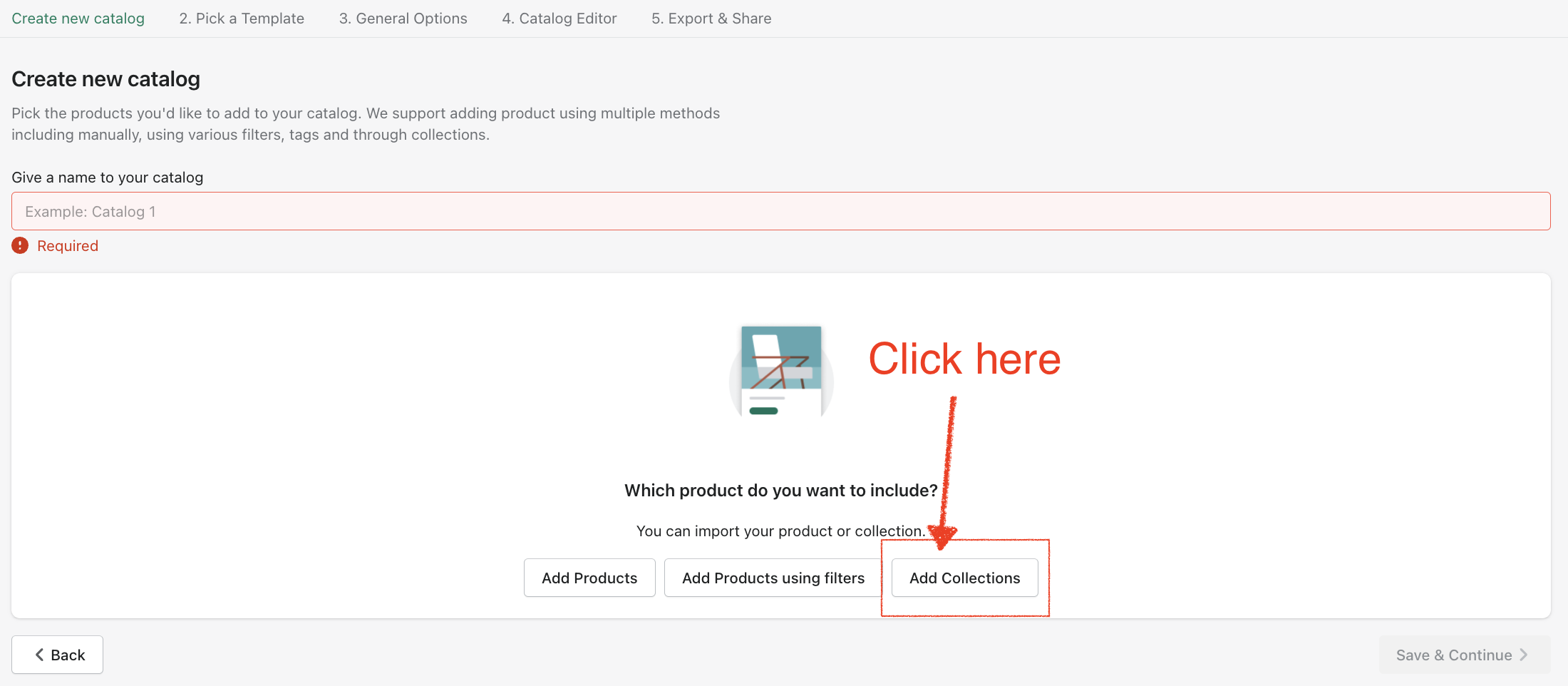
Step 2. Use the search bar to find the collections that you want to include.
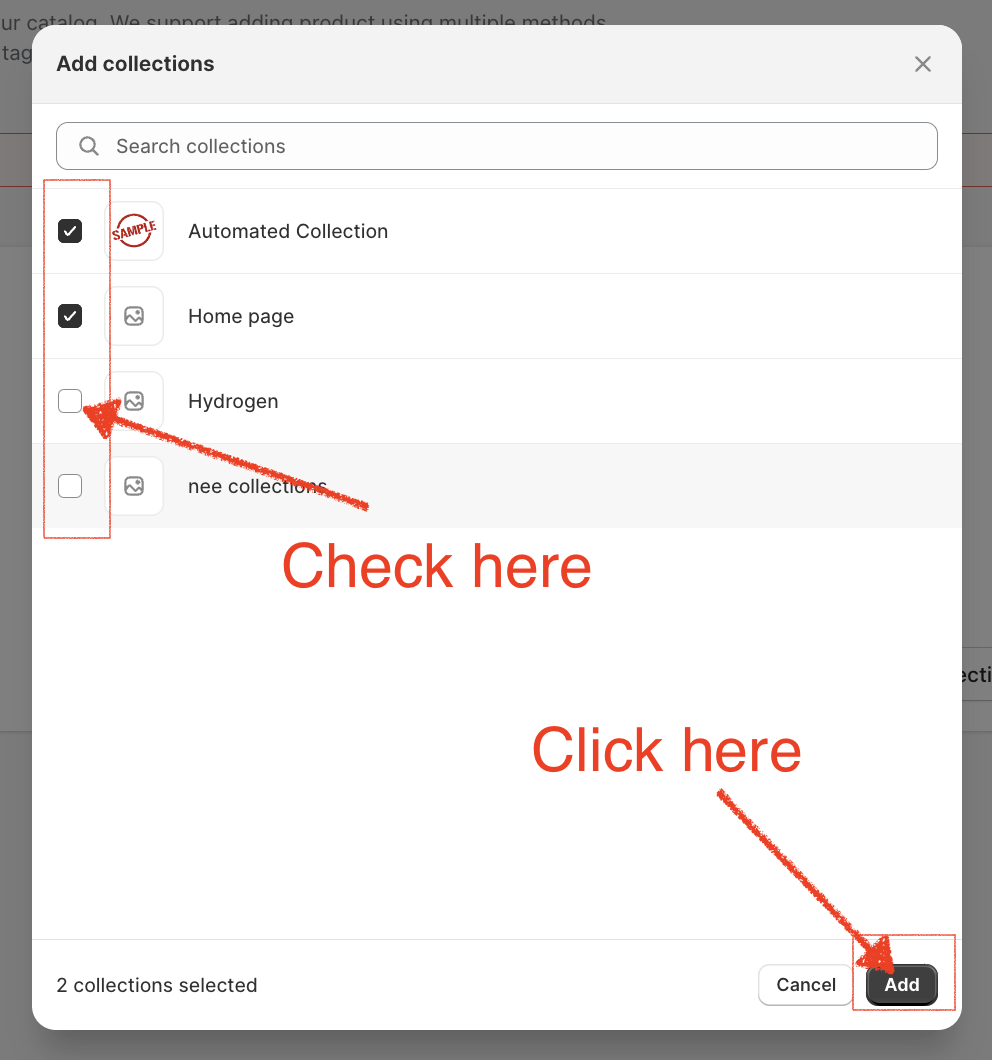
Step 3. Put a check on the collections that you want to include and then click "add".
The products should now appear in the "Added collections and products" list.
Adding products/collections while in the "Catalog Editor " page
Step 1. Go to any of the product catalog pages.
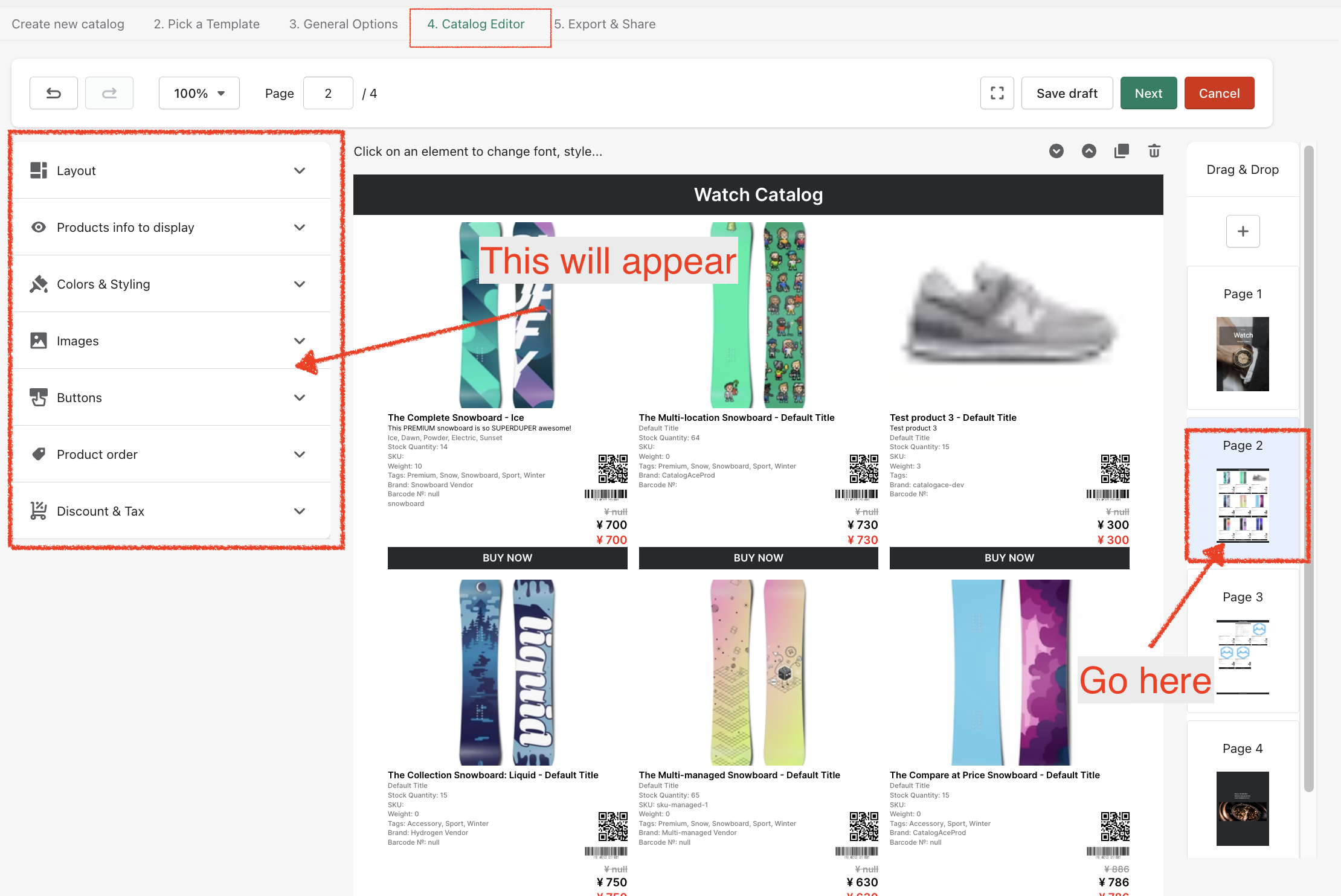
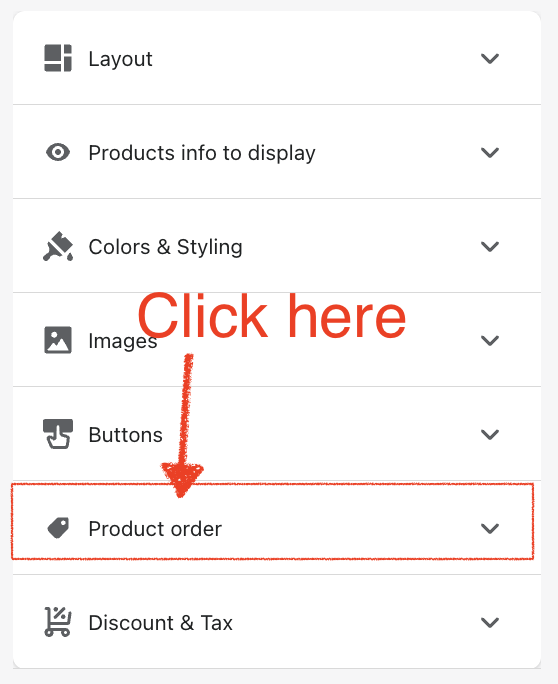
Step 2. Click on "Product order" to reveal the edit options.
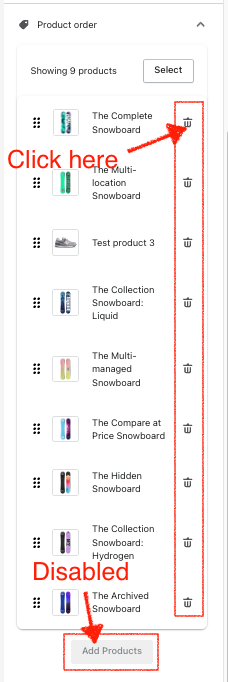
Step 3. If the page is full, the "Add Products" button will be disabled. You will need to delete a product before you can add a new one. It is highly advised to find a page that has vacant space where you can add the new product.
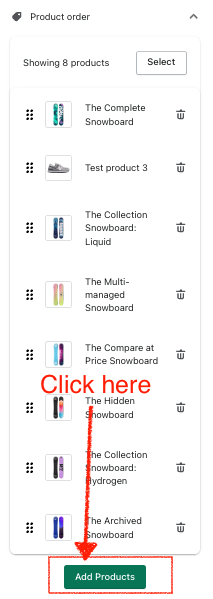
Step 4. If the "Add Products" button is enabled, click on it to reveal the "add product" window.
Step 5: Find the products that you want to include using the search bar or by scrolling up and down the list.
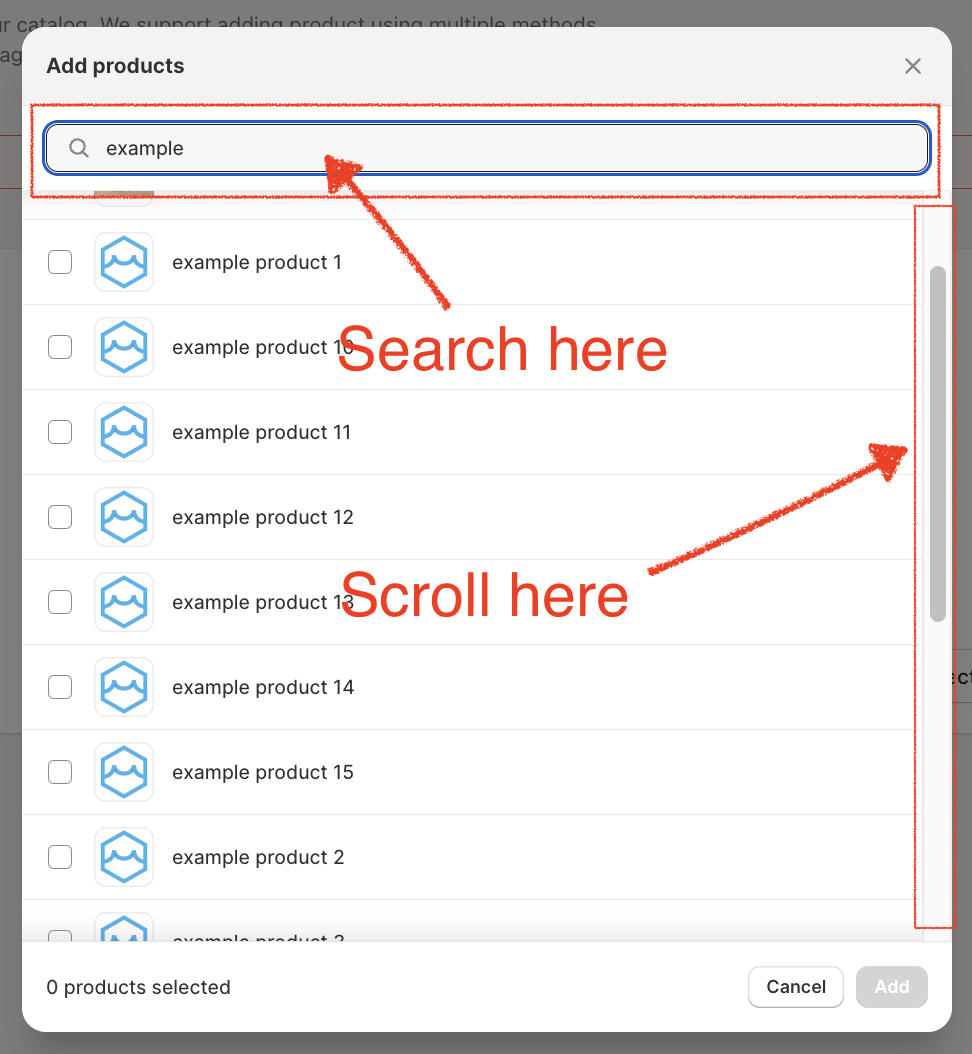
Step 6. Put a check on all the products that you want to include. And then click "Add".
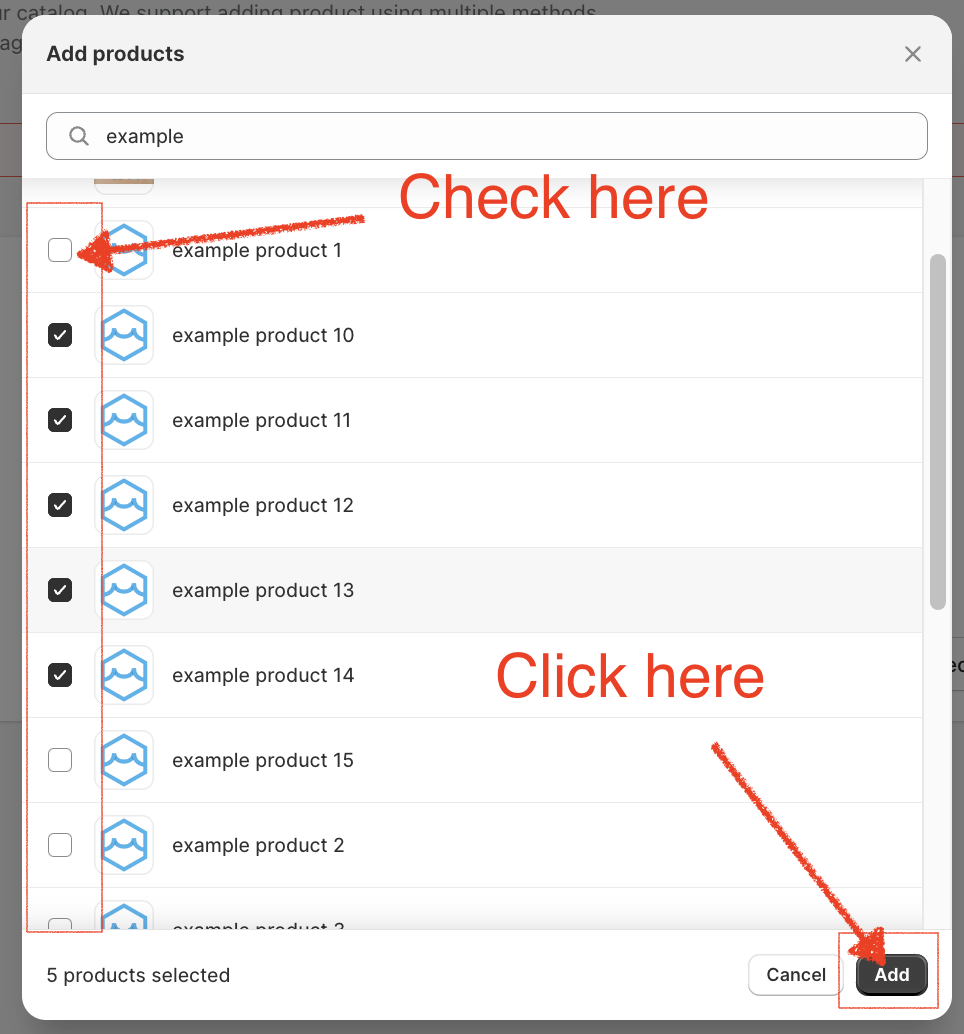
The selected product will now be added to the catalog page.
Keywords:
Is it possible to edit an existing Catalog?